IPTV Smarters is one of the best-known IPTV player apps, and it's often the first one people install. But there's a common misunderstanding: IPTV Smarters is a player, not a subscription. It doesn't come with channels of its own. You add the login details from your IPTV provider, and the app plays your service. This guide explains how that works, how to sign in, and how to fix the most common problems.
What IPTV Smarters is (and isn't)
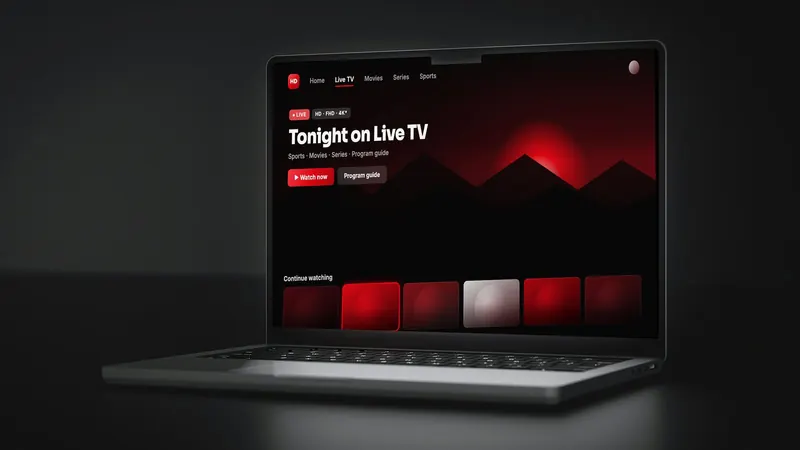
IPTV Smarters Pro is a third-party app made by an independent developer. It organizes live TV, movies and series from a service you already subscribe to, and adds a program guide, search and favorites. It isn't affiliated with any particular IPTV provider, including HDIPTVProvider.
Be careful with look-alikes
Only install player apps from your device's official app store or the developer's official website. Copies offered elsewhere, especially "pre-loaded" versions with channels built in, can contain malware and unlicensed content. When people search for an "IPTV Smarters subscription", what they need is a subscription from a provider, which they then enter into the app.
Which devices it runs on
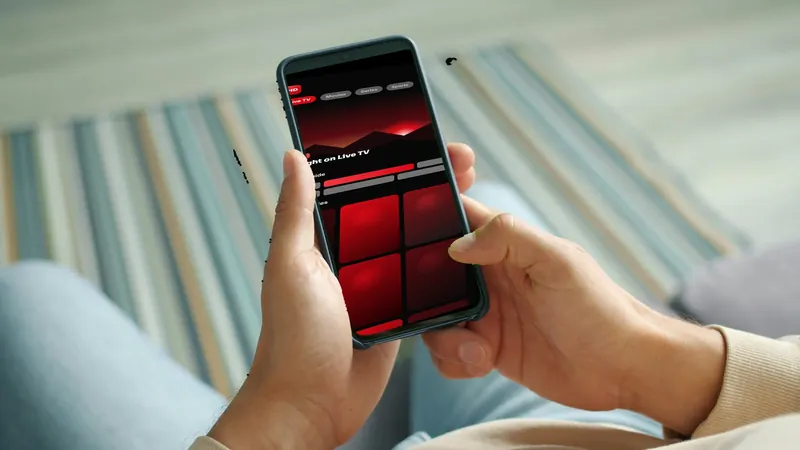
IPTV Smarters has versions for several platforms, including Android phones and TVs, iPhone and iPad, and some smart TVs and computers. Availability in each store changes over time, so search your device's official store first. If it isn't listed there, choose another reputable player. See our comparison of other players for Google TV and Android TV and our guide for iPhone, iPad, Mac and PC.
What you need before signing in
Have your login details ready from your provider's welcome message. They'll be one of these:
- Xtream Codes API: a server URL, username and password. This is the most common and usually the easiest.
- M3U playlist URL, sometimes with a separate EPG (program guide) URL.
How to sign in to IPTV Smarters
- Open the app and add a userOn first launch, choose to add a new user or playlist. Accept the terms only after reading them.
- Choose the login typeSelect Login with Xtream Codes API if your provider gave you a server, username and password. Otherwise choose the M3U option.
- Enter your details exactlyGive the profile any name you like, then type the username, password and server URL exactly as provided, including
http://orhttps://and any port number. - Add the user and waitThe app downloads your channels, movies and series. The first load can take a minute or two on large lists.
- Load the TV guideOpen Install EPG or the guide option on the dashboard so the program guide fills in.
Typing on a TV remote
Server URLs are easy to mistype with a remote. Some devices let you use a phone as a keyboard (for example the Fire TV or Google TV remote app), which saves time.
Settings worth changing
- Player selection: the app usually offers more than one built-in player. If a channel stutters, try the other option.
- Hardware decoding: keep it on for HD and 4K on TV devices, where available.
- Buffer size: increase it a step if streams pause on busy evenings.
- Time format and EPG time shift: adjust if guide listings appear an hour off.
Fixing common problems
"Invalid username or password" or "Authorization failed"
Check for extra spaces, capital letters and the full server URL including the port. Copy and paste from the welcome message if you can. If it still fails, ask your provider to confirm the details.
Channels load but the guide is empty
Refresh the EPG from the dashboard and wait a few minutes. If you use an M3U login, make sure you've added the separate EPG URL. Our EPG guide covers this in detail.
Playback buffers or freezes
Smarters can only play as smoothly as the connection allows. Check the speed on the device you're watching on, use a cable if it has a port, and if it still stalls, our IPTV buffering guide goes step by step.
The app worked yesterday but not today
Restart the device, update the app, and check whether your plan is still active. A clear-cache step often helps on Android-based devices.
Alternatives to IPTV Smarters
If IPTV Smarters doesn't suit your device, we compare the popular alternatives on Google TV; many Fire TV and Android TV users prefer TiviMate's TV-style guide (TiviMate setup). Some players charge their own fee, and paid IPTV player apps explains why.
Using IPTV Smarters with HDIPTVProvider
Your HDIPTVProvider login and a setup guide for your device arrive once your subscription is active. Stuck on the login screen? Message us on WhatsApp with your device model and a photo of the error screen.
FAQ
Does IPTV Smarters include channels?
No. Smarters is an empty player until you add a login from an IPTV provider, so the channels you see depend entirely on that subscription.
Is IPTV Smarters free?
The developer's pricing and features can change and may differ by platform. Check the listing in your device's app store.
Can I use one login on several devices?
That depends on how many simultaneous connections your plan allows. Ask your provider before signing in on multiple devices.
Questions before you subscribe?
Send our team your device model on WhatsApp and we'll answer before you pay. You can also compare our IPTV subscription plans or browse more guides.